

 EN
EN
 English
 Español
 عربى
عربىProduct Consultation
Your email address will not be published. Required fields are marked *
Content
If you spend several hours a day in front of a screen, the height and angle of your monitor matter far more than most people realize. A fixed monitor sitting too low forces your neck to tilt downward repeatedly, and over time that posture leads to stiffness, headaches, and the kind of shoulder tension that doesn't go away with a quick stretch. An adjustable monitor stand solves this by letting you set your screen at exactly the right height for your body — so your eyes land naturally on the top third of the screen, your neck stays neutral, and you can actually work comfortably for hours.
Beyond ergonomics, a height adjustable monitor stand clears your desk surface, creates space underneath for a keyboard or documents, and simply makes your workspace look more intentional. This guide walks through everything you need to know to choose, set up, and get the most out of one.
Not all monitor stands offer the same kind of adjustability. Before you buy, it helps to understand what the different types actually do and which one fits your setup.
These are the simplest and cheapest option — a platform that raises your monitor by a set amount, sometimes with removable risers underneath to change the height in fixed increments. They're sturdy and clutter-free, but the "adjustability" is limited. If you share your desk with someone taller or shorter than you, swapping out riser sections every time isn't practical.
A sit-stand monitor riser is a freestanding platform that slides up and down along a column, often with a gas spring or counterbalance mechanism. You can raise it when standing at your desk and lower it when sitting, all without tools or fiddling with bolts. These are especially popular in home offices where a full sit-stand desk isn't in the budget. Most models support monitors up to 27 inches and include a small keyboard shelf at the lower level.
A monitor arm clamps or bolts to the edge of your desk and holds your screen on an articulated arm that swings, tilts, rotates, and raises or lowers freely. This is the most flexible type of adjustable monitor mount available. Arms free up 100% of your desk surface, allow portrait or landscape orientation with a quick twist, and can be repositioned for meetings, collaboration, or switching between sitting and standing. Dual monitor arms hold two screens side by side on a single clamp, keeping everything aligned and consistent.
Designed for hybrid setups, these stands hold an external monitor at eye level while propping a laptop at a lower angle beside it. They're compact, often foldable, and ideal for smaller desks where both screens need to coexist without one blocking the other.
With dozens of adjustable monitor stand options on the market, focusing on a handful of practical specs will help you narrow down the right choice quickly.
| Feature | What to Look For | Why It Matters |
| Height range | At least 4–6 inches of travel | Covers most seated and standing positions |
| Weight capacity | Rated above your monitor's actual weight | Prevents sagging, drift, or tipping |
| VESA compatibility | 75×75mm or 100×100mm standard | Required for arms and mounts; check your monitor's back |
| Tilt and swivel | ±15° tilt, 180°+ swivel for arms | Fine-tunes the angle to eliminate glare and neck strain |
| Desk mounting method | Clamp vs. grommet hole vs. freestanding | Clamps work on most desks; grommet is more stable but requires a hole |
| Cable management | Built-in clips or channels | Keeps power and video cables tidy as you reposition |
| Screen size support | Match to your monitor's diagonal size | Arms rated for 27" may not safely hold ultrawide 34"+ panels |
Even the best adjustable computer monitor stand is useless if you don't dial in the right position. The correct height isn't the same for everyone — it depends on your chair height, your eye level when seated, and whether you wear progressive lenses or bifocals.
Sit in your normal working posture with your back supported, feet flat on the floor, and elbows at roughly 90 degrees. Now look straight ahead. Your eyes should fall on the top 20–25% of the visible screen area. If you're looking at the center or bottom of the screen when staring straight ahead, raise the stand. If you're tilting your chin up to see the top of the screen, lower it. The goal is a gaze that naturally drifts slightly downward — about 10 to 20 degrees below horizontal — which is the most relaxed and sustainable position for your neck muscles.
Height adjustability is only part of the equation. Your monitor should be roughly an arm's length away — about 20 to 28 inches from your face. A monitor arm with horizontal reach helps here, letting you push the screen further back on a deep desk or pull it closer on a shallow one. For ultrawide monitors, the correct distance increases slightly because your peripheral vision is doing more work.
People who wear progressive or bifocal lenses often need their monitor positioned lower than the standard recommendation. With these lenses, reading distance is focused through the lower portion of the lens, so tilting the chin down slightly to read the screen is more comfortable. If standard ergonomic height feels like you're straining to read clearly, try lowering your monitor stand by one to two inches and see if that resolves it.
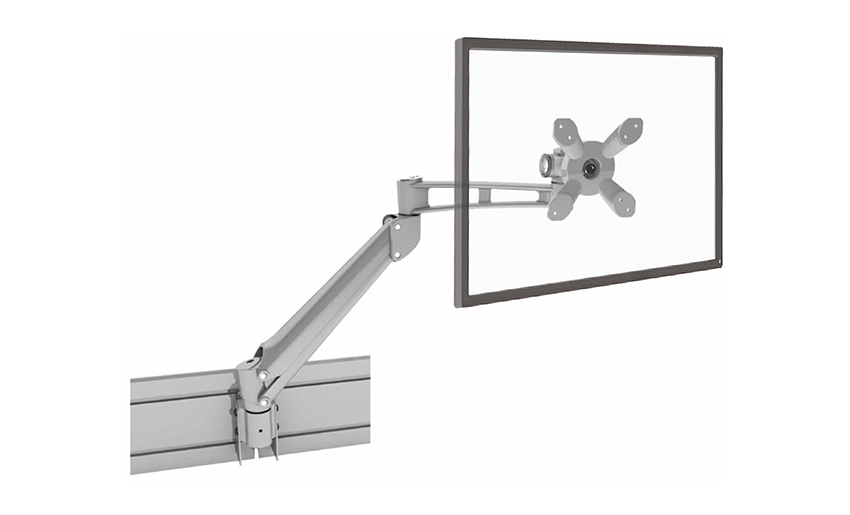
Running two screens requires a bit more planning. A mismatched dual monitor setup — one screen higher than the other, or tilted at different angles — creates constant micro-adjustments in your neck and eyes that add up to fatigue over a long day.
If you use both monitors roughly equally, position them symmetrically on either side of your centerline. A dual monitor arm with a single desk clamp is the cleanest solution — both screens share one mount, can be aligned at exactly the same height, and tilt inward at matching angles. The total horizontal angle between the two screens should be about 30 to 45 degrees. Much wider than that and you're turning your head more than your eyes, which defeats the purpose.
If one monitor is your main workspace and the other is secondary — for reference, chat, or background tasks — place the primary monitor directly in front of you at center and put the secondary off to the side. A height adjustable monitor riser for the main screen combined with a separate arm or stackable riser for the secondary works well here. Just make sure both screens are at approximately the same height so glancing between them doesn't involve looking up or down repeatedly.
Rather than ranking models by brand, here's a practical breakdown of which type of adjustable desk monitor stand makes the most sense for different real-world situations.
Monitor arms are the most capable type of adjustable monitor mount, but they require a bit more setup than a freestanding riser. Getting the installation right the first time saves you from wobbly screens and stripped clamps.
C-clamp arms typically accommodate desks between 0.4 and 3.5 inches thick. Measure your desk edge before purchasing. Glass desks usually can't support a clamp-mounted arm safely, and some desks with thick beveled edges create clearance issues. If your desk has a grommet hole (a pre-drilled circular opening for cable routing), a grommet-mount arm provides a more stable, lower-profile connection.
Turn your monitor around and look at the back. You'll see either four threaded holes in a square pattern or a central block. Measure the distance between the holes — 75×75mm and 100×100mm are the two standard VESA patterns that virtually all monitor arms support. Some older or budget monitors don't have VESA holes at all; in that case, you'll need a VESA adapter bracket or a freestanding riser instead.
After mounting, most gas-spring and friction arms have a tension adjustment screw, usually on the side of the main joint. If your monitor slowly drifts downward on its own, tighten the tension. If it's hard to move and springs upward when released, loosen it. The goal is effortless one-finger repositioning with the arm holding position when you let go. This adjustment often takes two or three small tweaks to get exactly right.
Even after buying a good adjustable monitor stand, a few common setup errors can undercut the ergonomic benefits. Here's what to avoid.
Your email address will not be published. Required fields are marked *
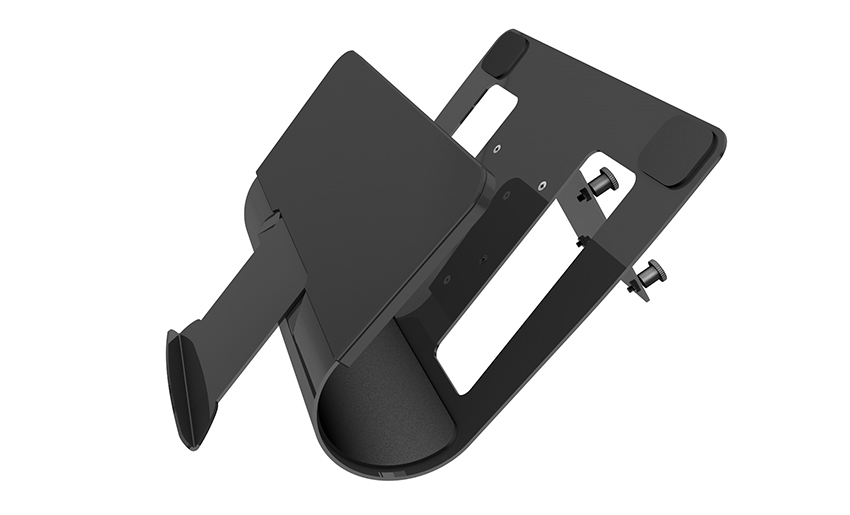
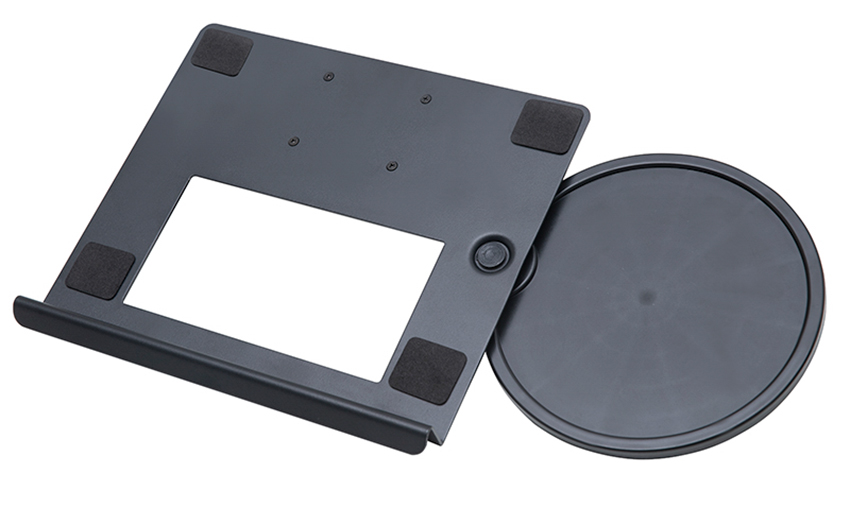
A Home Office Foldable Laptop Notebook Computer Tr...
See Details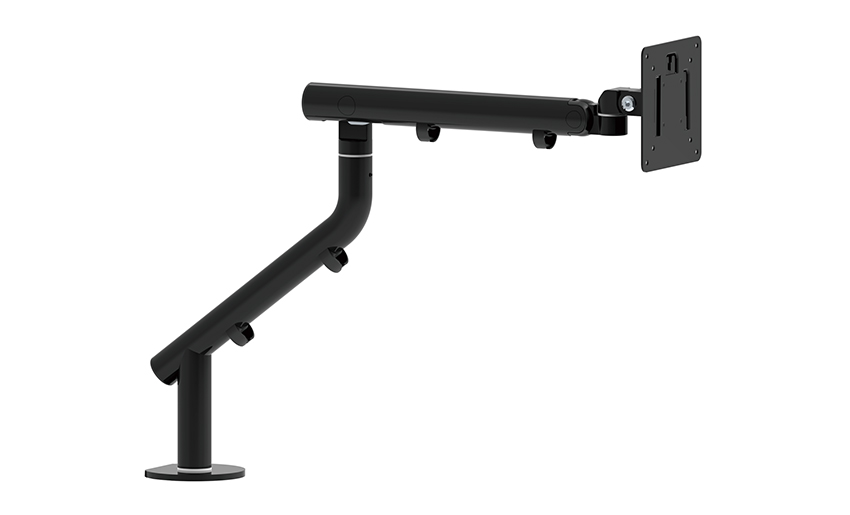
One of the key features of this monitor arm is its...
See Details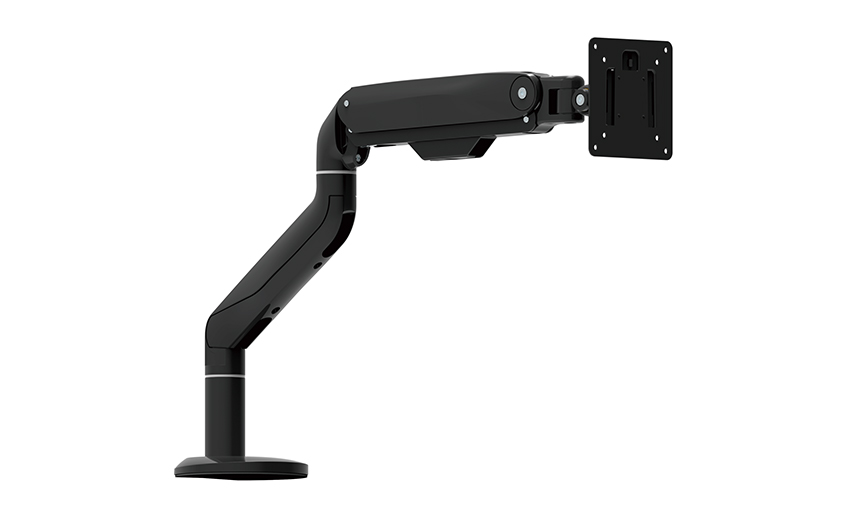
Revolutionize your work setup with the Aluminum &a...
See Details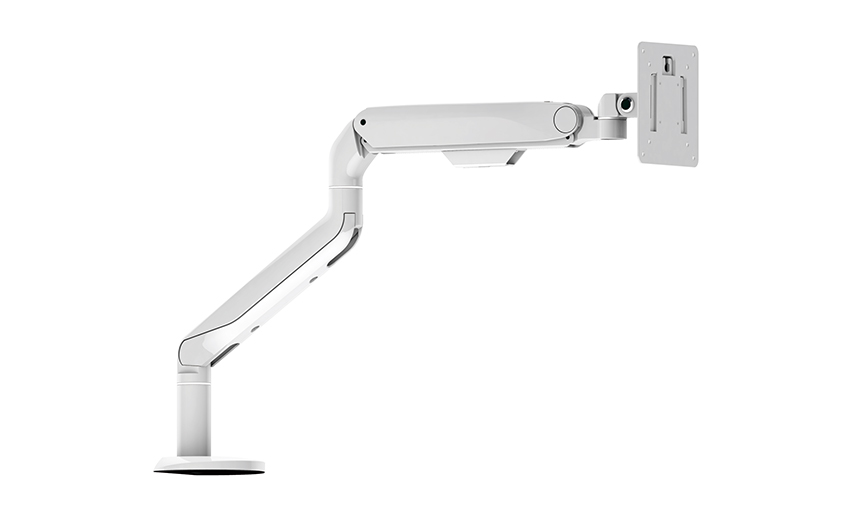
This sleek and sturdy arm is designed to securely ...
See Details
Address: No 3098 Shuanglong Rd, Daqiao Town 314006, Nanhu Area,Jiaxing city, Zhejiang Pro, China
Tel: +86-0573-83222192
Fax: +86-0573-83225688
URL: www.jxjmly.com
Email: [email protected]
Copyright © JIAXING JINMAO ALUMINUM INDUSTRY CO., LTD.All Rights Reserved. Monitor Arms Desk Mount Manufacturers Wholesale Monitor Brackets Suppliers
