

 EN
EN
 English
 Español
 عربى
عربىProduct Consultation
Your email address will not be published. Required fields are marked *
Content
An adjustable CPU holder is a mounting bracket or platform designed to hold your desktop computer tower either under your desk, on the side of a desk panel, or on the floor nearby — keeping it stable, accessible, and off your main work surface. The "adjustable" part refers to the holder's ability to expand or contract in width to accommodate different tower sizes, and in many cases to swivel, slide, or rotate so you can access ports and drives without crawling under furniture.
The practical benefit is straightforward: a desktop tower sitting on a desk surface consumes anywhere from 6 to 10 inches of horizontal space and often blocks airflow to the rest of your setup. Moving it off the desk with an adjustable computer tower holder reclaims that footprint entirely, reduces ambient desk heat, lowers dust accumulation on your peripherals, and gives your workspace a noticeably cleaner look. For people running dual monitors or working with large drawing tablets, that recovered space can be genuinely transformative.
Not all CPU holders for desks work the same way. The type you need depends on your desk design, floor surface, and how often you need to access the back or sides of your tower. Here are the four main categories:
These are the most popular style. An under-desk CPU holder attaches directly to the underside of your desk via clamp or screws, suspending your tower horizontally or vertically in a cradle beneath the surface. Most models in this category are fully adjustable in width — commonly expanding from about 3.5 inches to 8.5 inches to accommodate mini towers, mid towers, and even some full-size ATX cases. The cradle typically features rubber-lined arms to grip the tower without scratching it, and many include a 360-degree swivel so you can rotate the tower toward you to plug in a USB drive or headphone without moving the whole unit.
Side-clamp models attach to a desk leg or panel instead of the underside, positioning the tower vertically along the side of your desk rather than beneath it. This style is ideal for desks without enough clearance underneath for a full tower. The adjustable PC tower stand mechanism on these models usually features a heavy-duty clamp that fits desk panels up to 2 inches thick, with the CPU bracket extending outward from the panel face. Access to the front ports of the tower is generally better with this mounting style compared to under-desk options.
A rolling CPU holder keeps the tower on the floor but elevates it on a wheeled platform with a locking mechanism. This style is particularly useful for keeping towers off carpet — which is important because carpet restricts airflow to bottom intake fans and creates significant static electricity. Rolling platforms typically include locking casters so the tower stays put during normal use but can be pulled out easily for maintenance. The adjustable width on floor rolling models commonly spans from 4 inches to 9 inches, covering virtually any consumer tower size.
Less common but increasingly popular in minimalist and commercial office setups, wall-mount CPU brackets attach directly to a stud wall or mounting panel, holding the tower completely off both the desk and floor. These universal CPU holder designs work best in dedicated workstations where the tower is rarely accessed after initial setup. They free up the most physical space of any mounting type but require the most installation effort and aren't practical for renters or frequently reconfigured offices.
Buying an adjustable CPU holder without checking the specs against your actual tower and desk is one of the most common ways people end up with a product that doesn't fit. Here's what to measure and confirm before purchasing:
| Specification | What to Measure | Typical Range |
| Adjustable Width Range | Width of your tower case (widest point) | 3.5" – 9" (most universal models) |
| Weight Capacity | Weight of your fully loaded tower | 20 lbs – 50 lbs depending on model |
| Desk Thickness (clamp models) | Thickness of your desk surface or panel | 0.5" – 2.5" most common |
| Clearance Height (under-desk) | Distance from underside of desk to floor | Minimum 6" needed for most towers |
| Swivel Range | How much rotation you need for port access | 90° – 360° depending on model |
| Tower Height Support | Height of your tower case | Up to 24" for most full-tower holders |
One often-overlooked measurement is the weight of a fully loaded gaming or workstation tower. A mid-tower case with a full-size GPU, two or three hard drives, a large CPU cooler, and an AIO liquid cooler can easily weigh 25 to 35 pounds. Always confirm the rated weight capacity of the adjustable computer tower holder you're considering, and if you're near the limit, size up to a heavier-duty model.
The installation process for a clamp-style under-desk CPU holder is straightforward and typically takes under 15 minutes with no special tools. Here's how to do it correctly:
Before clamping anything, hold the CPU bracket for desk in position beneath the surface and simulate where your tower will sit. Confirm there's adequate clearance from the floor, no desk drawer runners in the way, and that the tower won't block any cable management holes or keyboard tray mechanisms you use regularly. Mark the position lightly with a pencil on the underside edge if the clamp needs to be positioned precisely.
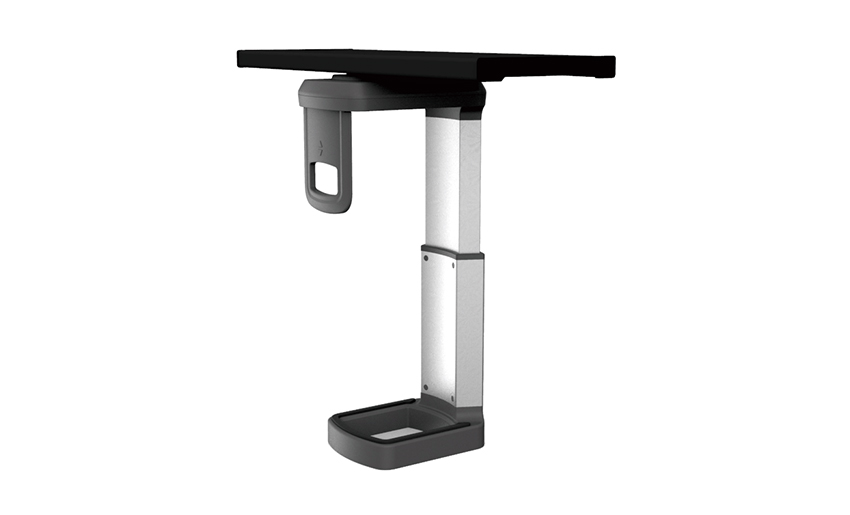
Open the clamp jaw wide enough to slide over your desk's edge or panel. Most under-desk CPU holders use a screw-tightened clamp with a rubber pad on both the top and bottom jaw to protect the desk surface from scratches. Tighten the clamp bolt firmly — hand-tight is usually sufficient, but give it an extra quarter turn with a wrench if the desk material is hard and smooth, such as glass or coated MDF, to prevent any slipping under load.
Expand the adjustable arms of the holder's cradle to roughly the width of your tower case, place the tower into the cradle, and then tighten the width adjustment knobs until the rubber-lined arms grip the tower firmly on both sides. The tower should feel secure without the arms bowing or the case panels flexing under pressure — if it feels tight enough to deform the case slightly, loosen by a half turn.
Once the tower is secure, reconnect your power, display, USB, and peripheral cables. If your universal CPU holder includes a swivel, test the full rotation range with cables connected to confirm there's enough cable slack to rotate without pulling anything loose. Add a few extra inches of cable slack on shorter runs before finalizing your cable management. Power on the system and verify everything functions normally before considering the installation complete.
One of the most important and frequently underestimated considerations when using a desktop CPU mount is how the holder's position affects the airflow inside and around your tower. Most desktop PC cases are designed with a front-to-back or bottom-to-top airflow path, and mounting orientation matters significantly for cooling performance.
Under-desk holders that suspend the tower horizontally (lying on its side) can sometimes interfere with cooling if the case wasn't designed for horizontal operation. Many mid-tower cases work fine in both orientations, but cases with large bottom-mounted intake fans will have those intakes now facing sideways — potentially reducing their efficiency. If your tower has a large side-panel window with a mesh intake, verify that intake isn't pressed against the desk surface or the holder's arm when mounted.
Floor-level rolling holders, while convenient, must keep the tower elevated above carpet. A hard plastic or metal rolling platform that raises the tower at least 1 to 2 inches off the floor maintains proper clearance for bottom intake fans and dramatically reduces the amount of carpet fiber and fine dust particles the tower pulls in. This alone can extend the time between cleaning cycles by several months in a typical home environment.
Adjustable CPU holders solve real problems for a specific set of users, but they're not necessary for every desktop setup. Here's an honest breakdown of who benefits most and who might be better served by a different solution:
If you're still deciding which type of adjustable PC tower stand best matches your situation, this side-by-side comparison of the main styles covers the most practical decision factors:
| Holder Style | Space Saved | Install Difficulty | Port Access | Best For |
| Under-Desk Clamp | High (full desk surface) | Easy (10–15 min) | Good (with swivel) | Most desks, standard mid-towers |
| Side Panel Clamp | Medium (side clearance) | Easy (10 min) | Very Good | Low-clearance desks, panel-sided desks |
| Rolling Floor Stand | Medium (moves tower off desk) | Very Easy (no tools) | Excellent | Carpet floors, heavy towers, frequent access |
| Wall Mount Bracket | Maximum (off all surfaces) | Moderate (stud finding, drilling) | Fair (fixed position) | Permanent setups, minimalist offices |
Once your adjustable CPU holder is installed and your tower is securely mounted, a few ongoing habits will keep everything working well and protect both the holder and your hardware over the long term.
A quality adjustable CPU holder installed correctly and maintained with basic attention will easily serve for the entire lifespan of your desk setup — typically five to ten years or more. Given that the cost of most models falls between $20 and $60, it ranks among the highest-value upgrades you can make to a desktop workstation in terms of functional return per dollar spent.
Your email address will not be published. Required fields are marked *
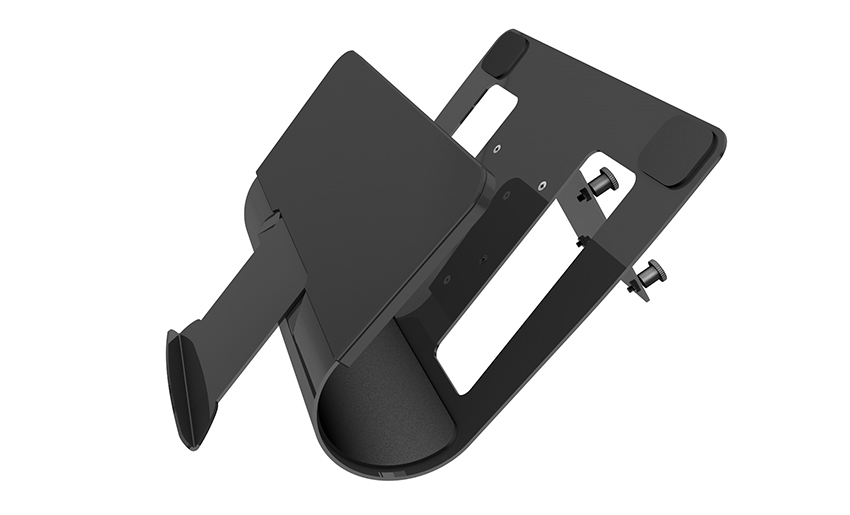
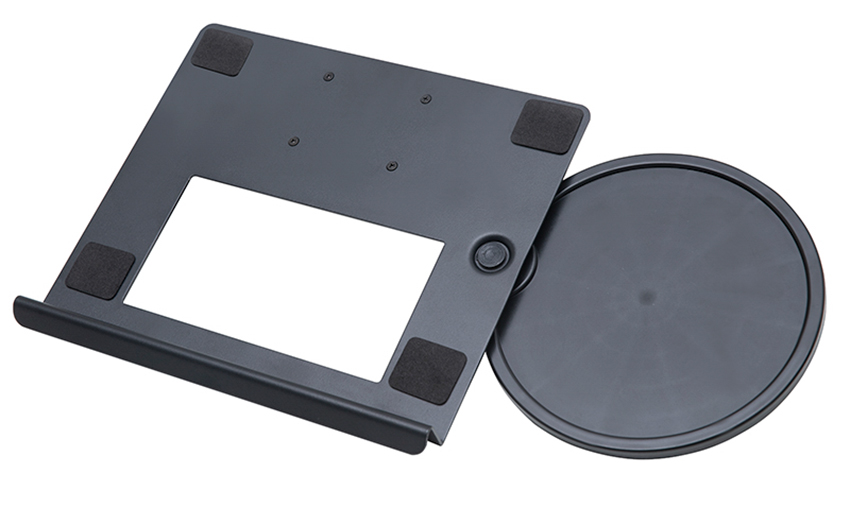
A Home Office Foldable Laptop Notebook Computer Tr...
See Details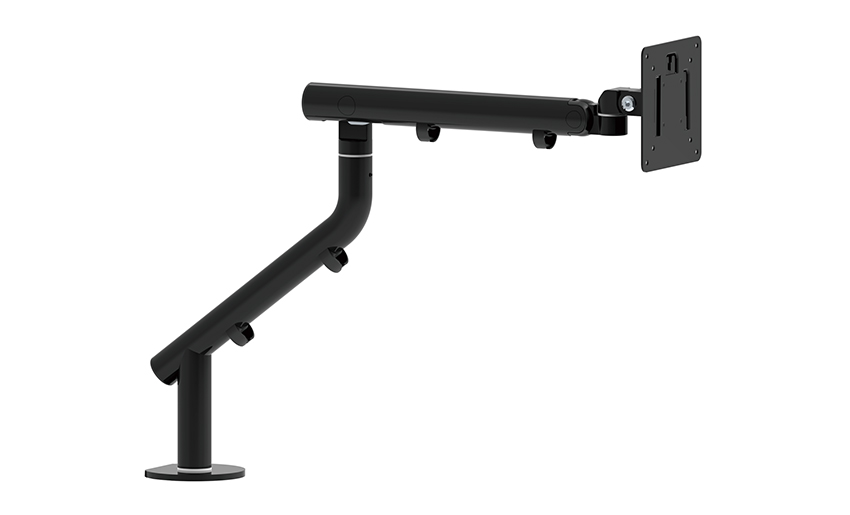
One of the key features of this monitor arm is its...
See Details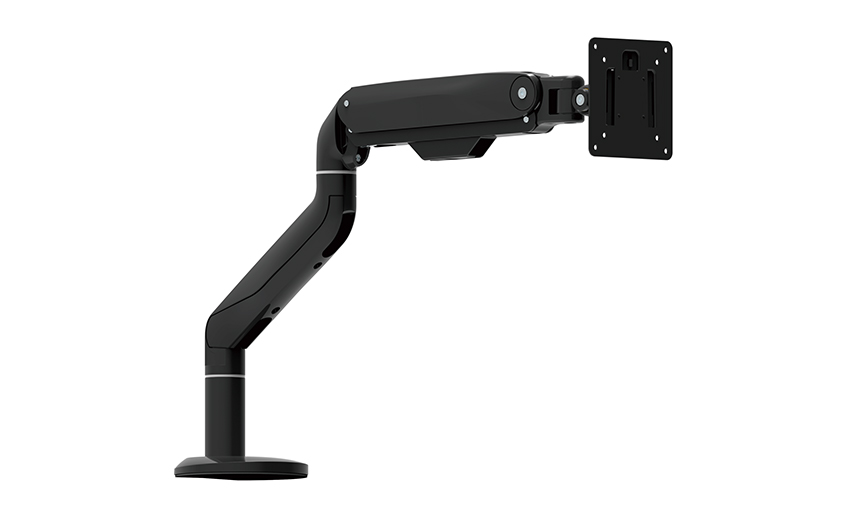
Revolutionize your work setup with the Aluminum &a...
See Details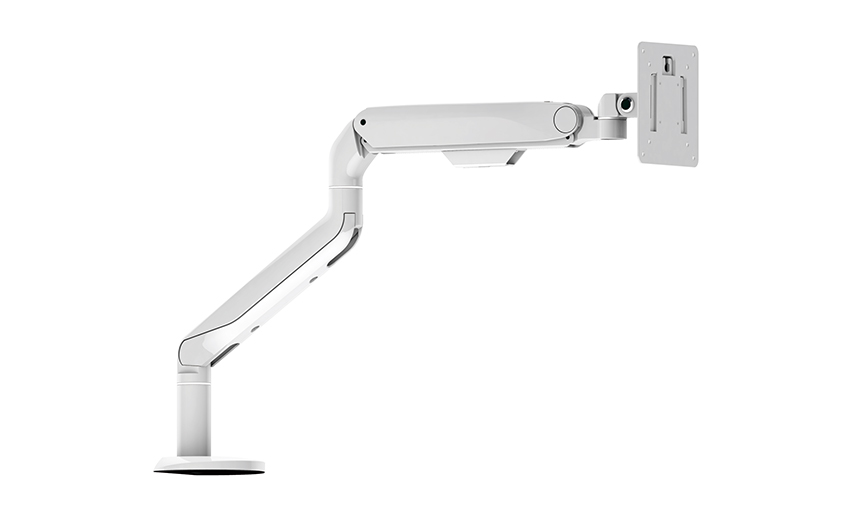
This sleek and sturdy arm is designed to securely ...
See Details
Address: No 3098 Shuanglong Rd, Daqiao Town 314006, Nanhu Area,Jiaxing city, Zhejiang Pro, China
Tel: +86-0573-83222192
Fax: +86-0573-83225688
URL: www.jxjmly.com
Email: [email protected]
Copyright © JIAXING JINMAO ALUMINUM INDUSTRY CO., LTD.All Rights Reserved. Monitor Arms Desk Mount Manufacturers Wholesale Monitor Brackets Suppliers
