

 EN
EN
 English
 Español
 عربى
عربىProduct Consultation
Your email address will not be published. Required fields are marked *
Content
Most people sit at a desk with their monitor too low. When the screen sits flat on the desk surface, the natural viewing angle forces your head to tilt slightly downward for hours at a time — and that sustained forward head posture is one of the most common contributors to neck strain, upper back tension, and end-of-day headaches among desk workers. A computer monitor stand corrects this by raising the screen to eye level, which allows your neck to stay in a neutral, upright position throughout the workday.
The ergonomic guideline most occupational health references agree on is that the top of your monitor screen should sit at or just below eye level when you're seated upright in your normal working posture. For most adults sitting in a standard office chair at a standard desk, this means raising the monitor somewhere between 10 and 20 centimeters above the desk surface. A monitor stand — whether a simple riser, an adjustable platform, or a full monitor arm — is the most direct way to achieve and maintain that position consistently.
The term "monitor stand" covers a wide range of products with very different designs, price points, and use cases. Understanding the main categories is the first step toward narrowing down what will actually work for your setup.
A fixed monitor riser is the simplest form of desk monitor stand — a platform or shelf that sits on the desk and raises the monitor to a set height. Most are made from wood, bamboo, metal, or plastic, and many include open storage space underneath for a keyboard, notebooks, or small accessories. Fixed risers are stable, affordable, and require no assembly beyond placing them on the desk. The limitation is the name: the height is fixed, meaning if the riser's height doesn't match your ergonomic requirements precisely, you're stuck with whatever angle it gives you. They work well for users who already know the height they need or who are happy to supplement with a seat adjustment.
Adjustable monitor stands sit between fixed risers and full monitor arms in terms of flexibility and price. They typically offer a range of height settings — adjusted via a telescoping column, stacking risers, or a gas-spring mechanism — and some models also include tilt and swivel adjustments. This category is the practical sweet spot for most home office users who want ergonomic flexibility without committing to a full desk-mounted arm system. When evaluating adjustable desk monitor stands, check the actual height range against your needs rather than assuming any adjustable model will cover your required lift.
A monitor arm — sometimes called a monitor arm stand — mounts to the desk edge or passes a bolt through a desk grommet hole, then holds the monitor on an articulating arm that can be positioned freely in height, depth, and angle. Monitor arms offer the most flexibility of any mounting solution: you can push the screen aside when not in use, pull it close for detail work, tilt it to reduce glare, or rotate it to portrait orientation. They also free up the entire desk surface beneath the screen, which is a meaningful gain in small workspaces. The trade-off is cost — quality monitor arms are significantly more expensive than risers — and the requirement that your monitor has a VESA mounting pattern on the back.
Dual monitor stands support two screens on a single base or desk-mounted pole, keeping both at a consistent height and reducing desk clutter compared to two separate stands. They come in both fixed and adjustable configurations, and some include independent tilt and swivel for each screen so you can angle each monitor toward your seating position. For anyone running a two-screen setup, a purpose-built dual monitor stand is almost always tidier and more stable than two individual risers placed side by side. Triple and quad monitor configurations are also available for trading, video editing, and specialist workstation setups, though these typically require a heavier-duty pole or wall-mounted system.
| Type | Height Adjustable | Desk Space Freed | VESA Required | Relative Cost | Best For |
| Fixed Riser | No | Under-stand only | No | Low | Budget setups, known fixed height |
| Adjustable Stand | Yes (limited range) | Under-stand only | No | Medium | Home office, shared desks |
| Monitor Arm | Yes (full range) | Full desk surface | Yes | High | Ergonomic priority, small desks |
| Dual Monitor Stand | Varies by model | Moderate | Sometimes | Medium–High | Two-screen workstations |
A monitor stand that looks right in a product photo can still be the wrong choice if the specs don't match your monitor and desk. These are the numbers worth checking before you commit to a purchase.
Every monitor stand has a rated weight capacity, and exceeding it leads to instability, structural failure, or — in the case of monitor arms — gradual drift where the arm slowly lowers under the monitor's weight over time. Most 24–27 inch monitors weigh between 4 and 7 kilograms including the stand. Ultrawide monitors in the 34–49 inch range can reach 10–12 kilograms. Always check your monitor's actual weight in the manufacturer's specs and confirm the stand's capacity comfortably exceeds it — a 20–30% margin above the monitor's weight is a reasonable buffer, especially for monitor arms used with larger screens.
For adjustable monitor stands, the height range listed in the product specs tells you the minimum and maximum lift from desk surface to the bottom of the monitor. To find your required height, sit in your normal working position, measure the distance from your desk surface to your eye level, then subtract the height of your monitor's screen center from the top of the stand. This calculation tells you the stand height you actually need — and you'd be surprised how often popular adjustable stands don't cover the full range that taller users require. Don't assume any adjustable stand will work; verify the numbers against your own measurements.
VESA (Video Electronics Standards Association) mounting patterns are the standardized bolt hole configurations on the back of monitors that allow them to be attached to arms, wall mounts, and compatible stands. The most common pattern is 75x75mm or 100x100mm — four bolt holes arranged in a square at those measurements. Some larger monitors use 200x100mm or larger patterns. Before buying a monitor arm, check your monitor's VESA pattern in its spec sheet and confirm the arm supports it. Monitors without a VESA pattern — typically budget or all-in-one displays — cannot be used with a standard monitor arm without an aftermarket VESA adapter bracket.
The base of a monitor riser or adjustable stand occupies desk space, and on a compact desk this matters. Some fixed risers have a large platform base by design — the storage shelf underneath is the point — but others have unnecessarily wide footprints that push keyboards and peripherals further forward than necessary. Measure the available depth on your desk between the wall or monitor position and your comfortable keyboard placement, and check that the stand's base depth fits within that space without compromising your working posture.
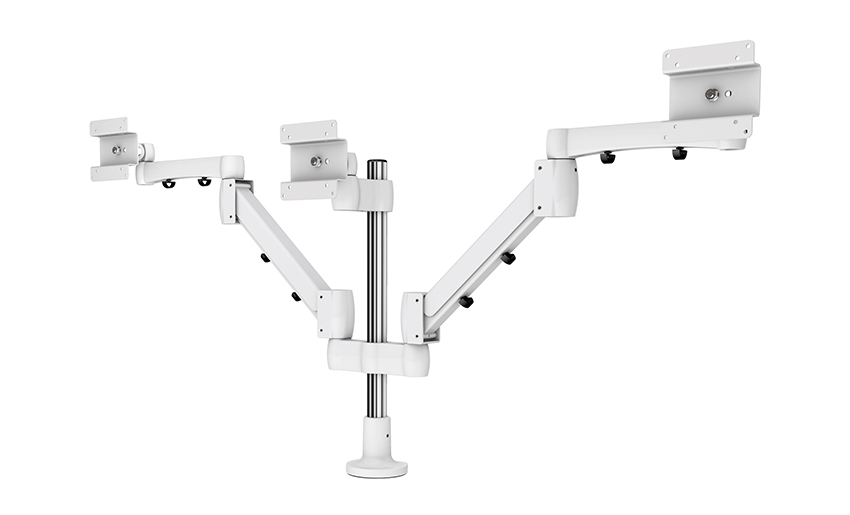
A growing category of desk monitor stands doubles as desk organizers, combining the screen-raising function with practical storage for the items that typically clutter a desk surface. These stands are particularly popular in home offices and compact workspaces where every square centimeter of desk area counts.
The most common version is an open shelf or platform stand that raises the monitor and leaves a usable cavity underneath — typically 8–12cm high — for a keyboard, notebook, external hard drive, or small plants. Wood and bamboo versions of this style are particularly popular because they look more like furniture than office equipment, which suits home office setups where aesthetics matter alongside function. The practical limitation is that the keyboard stored underneath is awkward to use unless you pull it out first, so this works better as storage for items you don't access constantly rather than as a keyboard tray.
Some adjustable monitor stands include a built-in USB hub — typically USB-A and USB-C ports — in the stand body, which brings connectivity to the front of your desk rather than requiring you to reach around to ports at the back of your computer or monitor. This is a genuinely useful feature for desks where cable management is a priority, or where you regularly connect and disconnect external drives, headsets, or charging cables. If this feature appeals, check the USB specification: USB 3.0 ports are significantly faster than USB 2.0 for data transfer, and a USB-C port with Power Delivery allows laptop or device charging rather than just data connection.
A smaller number of monitor stand models include a Qi wireless charging pad integrated into the base platform, allowing you to charge a compatible phone simply by placing it on the stand. This is a convenience feature rather than a performance one, but for users who consistently keep their phone on their desk while working, it removes one cable from the equation. Check the charging wattage — most integrated pads charge at 5–10W, which is adequate for overnight-style top-up charging but slower than a dedicated fast charger if you're in a hurry.
The monitor stand category has enough options that it's easy to buy something that looks right but creates problems once it's on your desk. These are the most common mistakes worth avoiding:
Getting the right stand is only half the job — setting it up correctly determines whether you actually get the ergonomic benefit. The most common error is placing the monitor at a height that seems comfortable initially but is still too low, because people tend to unconsciously adjust their posture to the screen rather than adjusting the screen to their posture.
The correct setup sequence starts with your chair. Adjust your seat height so your feet are flat on the floor and your thighs are roughly parallel to the desk surface. Then sit upright — back against the backrest, shoulders relaxed — and look straight ahead with your eyes in their natural resting position. The center of your monitor screen should sit at or just below that horizontal eye line. If it doesn't, adjust the stand height until it does. Most people find their monitor needs to go higher than they initially expect.
Tilt the monitor screen back slightly — typically 10–20 degrees from vertical — so the screen face is perpendicular to your line of sight rather than parallel to the wall. This reduces the need to angle your neck up or down to see the full screen area clearly. For monitor arms, also check the horizontal distance: the screen should be roughly an arm's length away from your seated position, which for most people translates to 50–70cm. Screens placed too close increase eye strain; too far and you'll find yourself leaning forward, negating the posture benefit of the raised height.
Your email address will not be published. Required fields are marked *
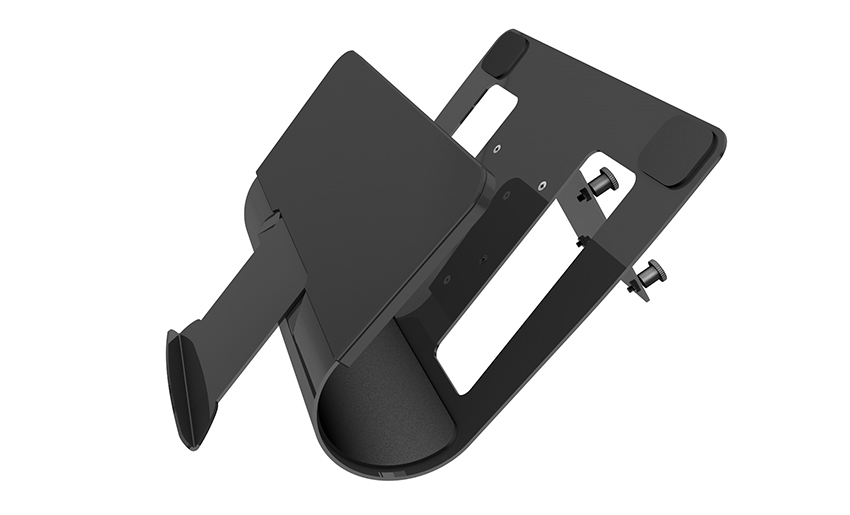
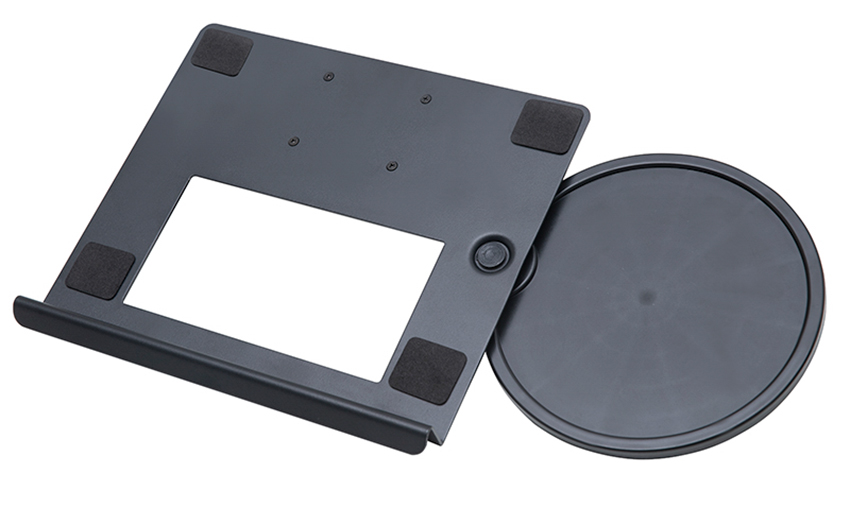
A Home Office Foldable Laptop Notebook Computer Tr...
See Details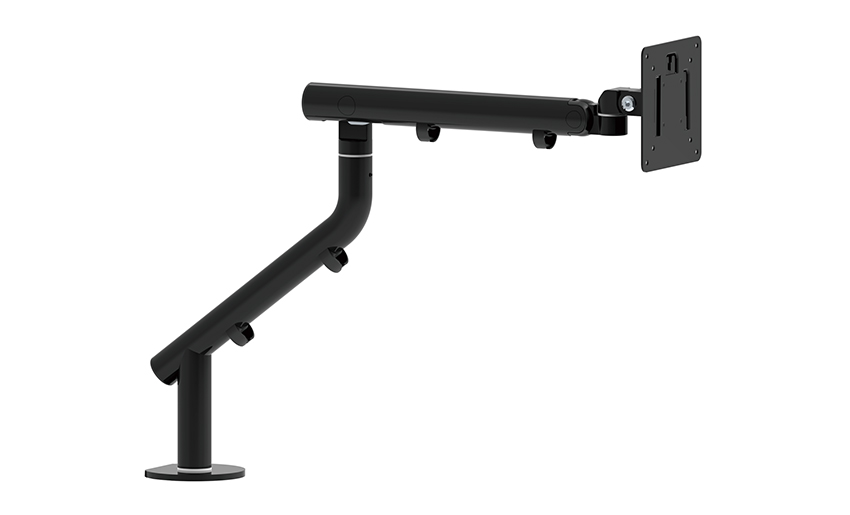
One of the key features of this monitor arm is its...
See Details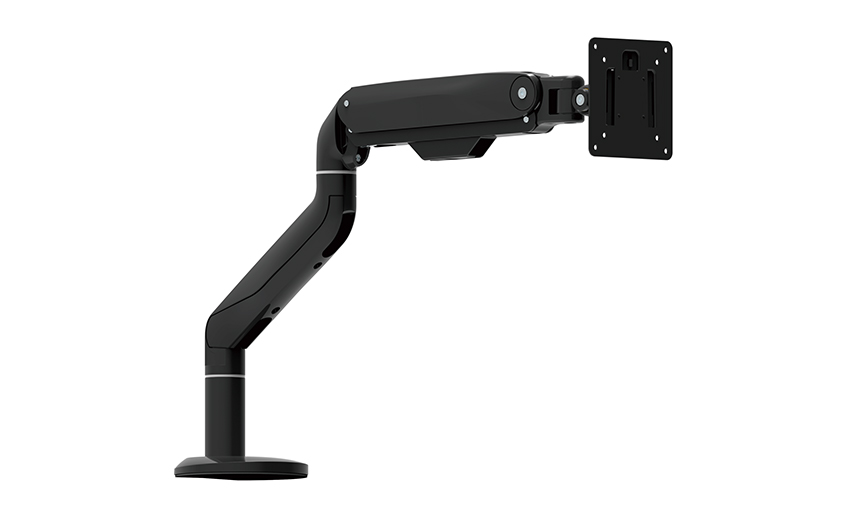
Revolutionize your work setup with the Aluminum &a...
See Details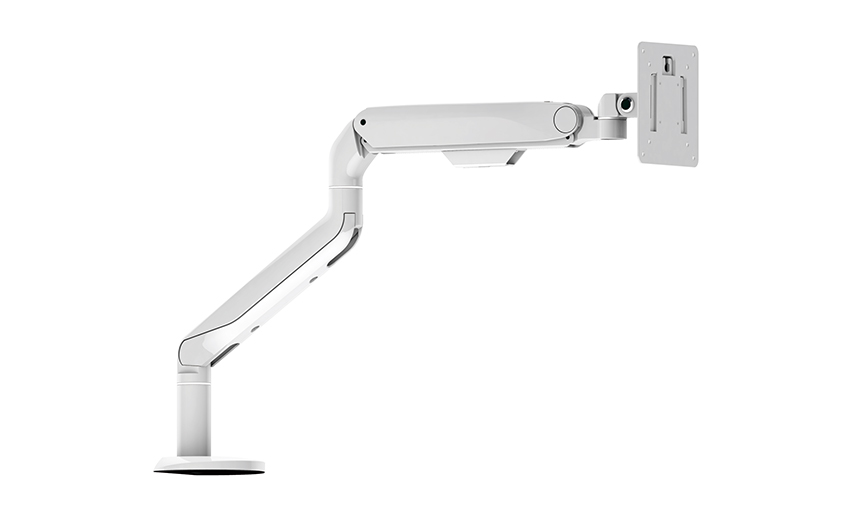
This sleek and sturdy arm is designed to securely ...
See Details
Address: No 3098 Shuanglong Rd, Daqiao Town 314006, Nanhu Area,Jiaxing city, Zhejiang Pro, China
Tel: +86-0573-83222192
Fax: +86-0573-83225688
URL: www.jxjmly.com
Email: [email protected]
Copyright © JIAXING JINMAO ALUMINUM INDUSTRY CO., LTD.All Rights Reserved. Monitor Arms Desk Mount Manufacturers Wholesale Monitor Brackets Suppliers
